User Profile & Settings
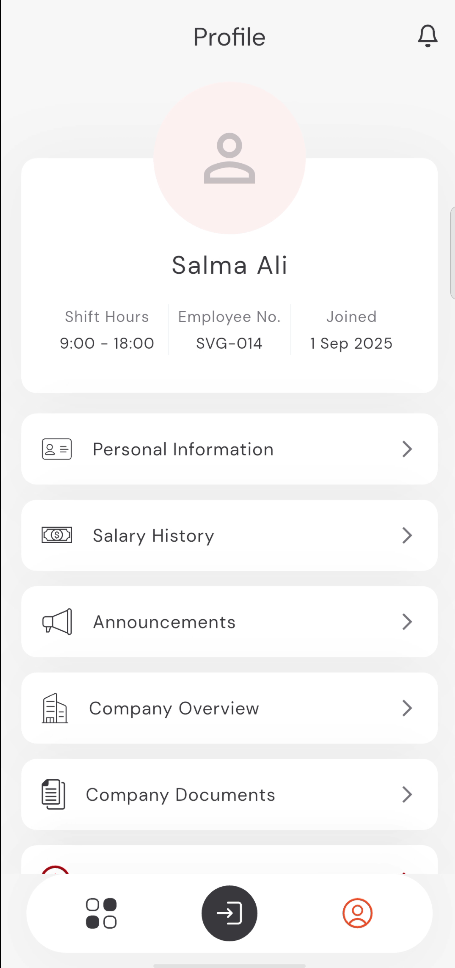
Your profile page contains your personal information, employment details, and access to company documents.
Accessing Your Profile
To access your profile, tap the Profile icon (usually at the bottom right) or select it from the menu.
Personal Information
The top section shows your Name, Employee Number, Shift Hours, and Join Date.
Tap on Personal Information to view your contact details, work shift, and department information.
You can find your Direct Manager and Job Title listed in the Department Information section.
9:41●●●●○WiFi100% 🔋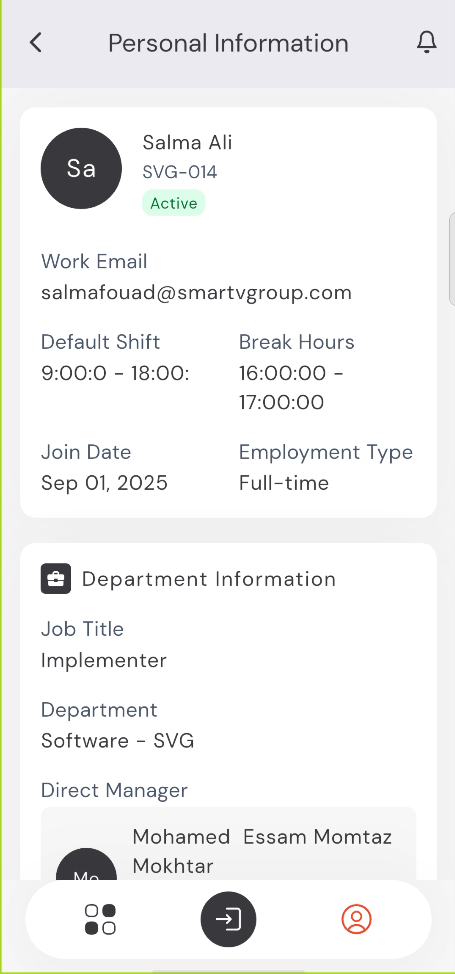
Salary History
Tap on Salary History to view your past payments and salary records.
You can Select Year from the dropdown to view records for different years.
Each payment card shows the month, the Net Pay, and a Latest badge for the most recent entry.
Tap View More on any record to see a detailed breakdown of your earnings and deductions.
9:41●●●●○WiFi100% 🔋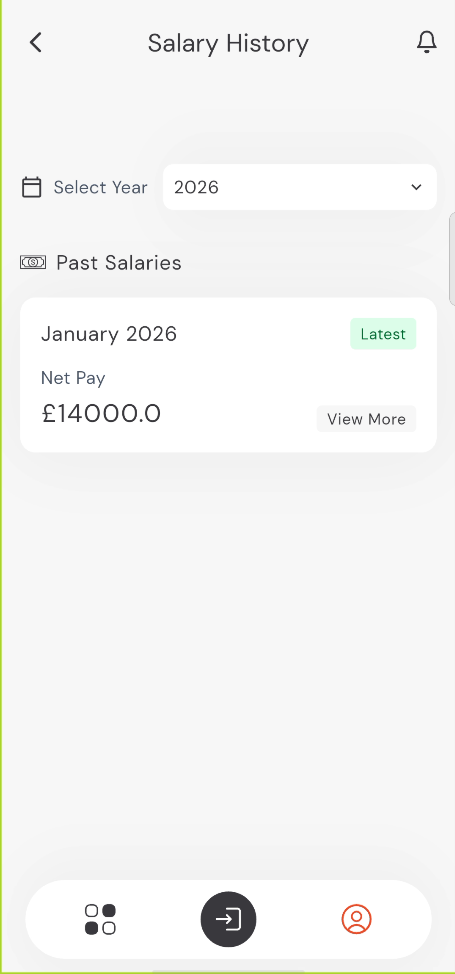
Announcements
Tap on Announcements to view official company news and updates.
Use the Filters to find specific announcements.
Tap on an announcement card to read the full content and instructions.
9:41●●●●○WiFi100% 🔋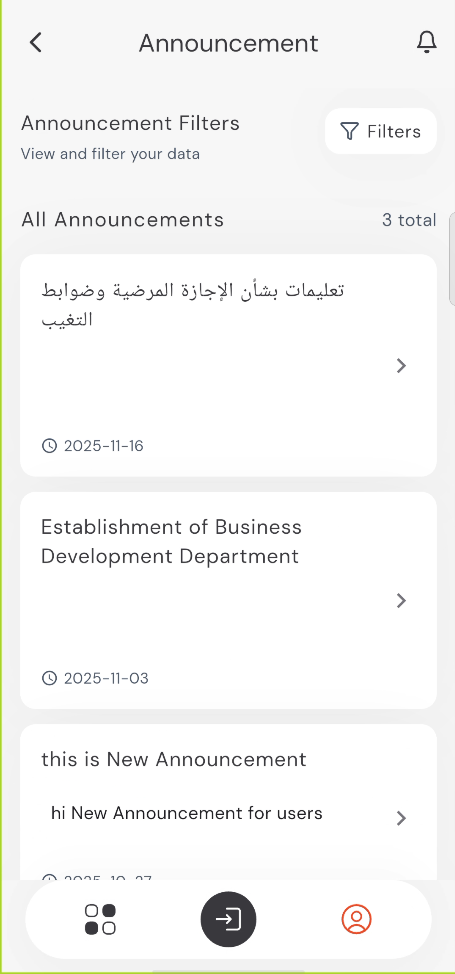 9:41●●●●○WiFi100% 🔋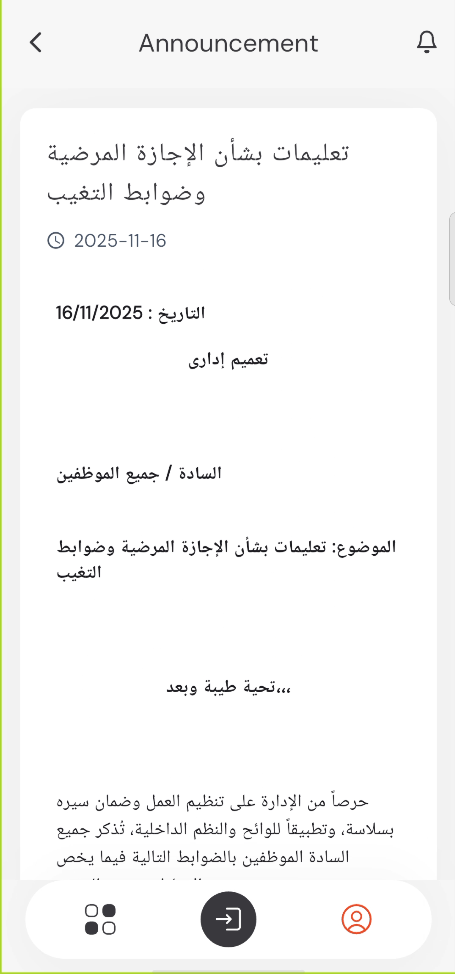
Company Documents & Overview
Tap on Company Documents to access policy manuals, forms, and other shared documents.
Tap on Company Overview to learn more about the organization's history, mission, and contact information.
9:41●●●●○WiFi100% 🔋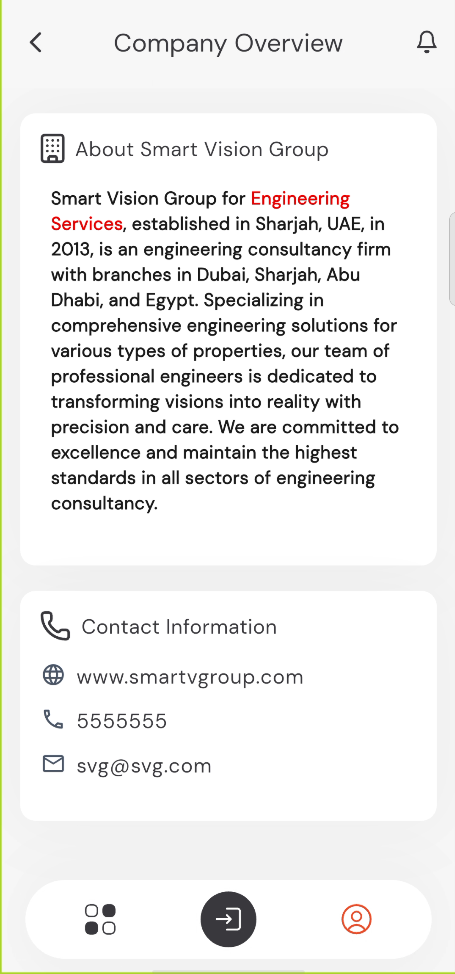
Logging Out
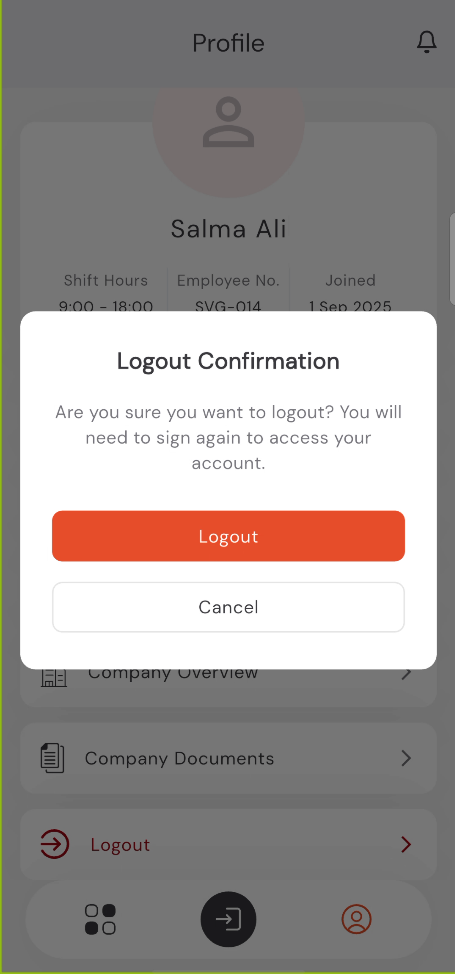
To securely exit the app, scroll to the bottom of the profile page and tap the Logout button.
A Logout Confirmation dialog will appear to ensure you want to sign out.
9:41●●●●○WiFi100% 🔋