Employee Data
The Employee Data module allows HR managers to view and manage comprehensive employee records, including personal documents and critical expiration dates.
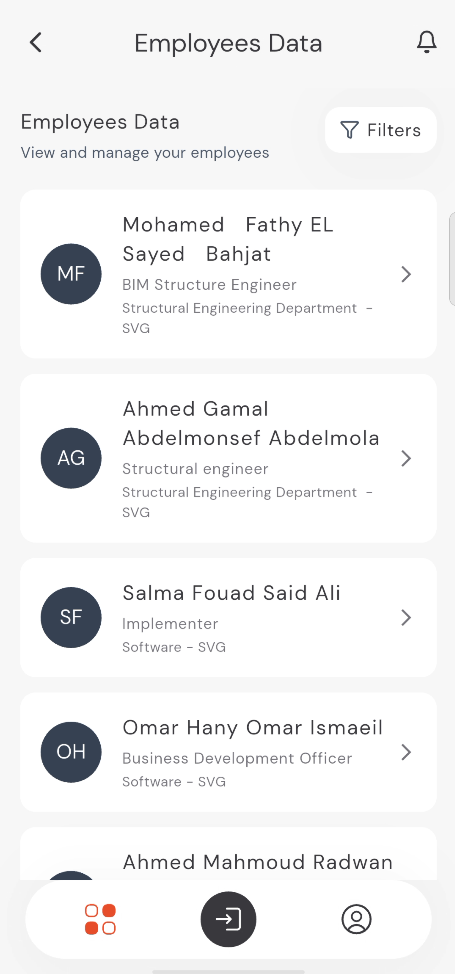
Viewing Employee List
- Navigate to Employees Data from the home screen.
- You can see a list of all employees with their:
- Full Name
- Job Title
- Department
- Use the Filters button to quickly find employees by department or specific criteria.
9:41
●●●●○WiFi100% 🔋
Employee Details
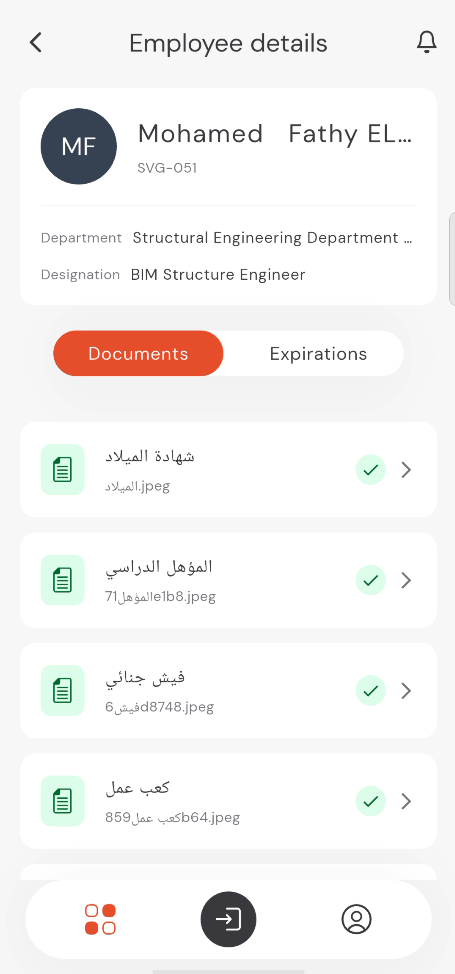
Tap on any employee card to enter their detailed profile. The profile is divided into two main sections:
1. Documents
This section stores all digital copies of employee records (e.g., Birth Certificate, Educational Qualifications).
- Status Icons: Green checkmarks indicate that the document is valid and uploaded.
- Viewing/Editing: Tap on a document to view or edit it.
- Upload/Replace: You can replace existing documents or upload new ones as needed.
9:41
●●●●○WiFi100% 🔋
Managing Documents
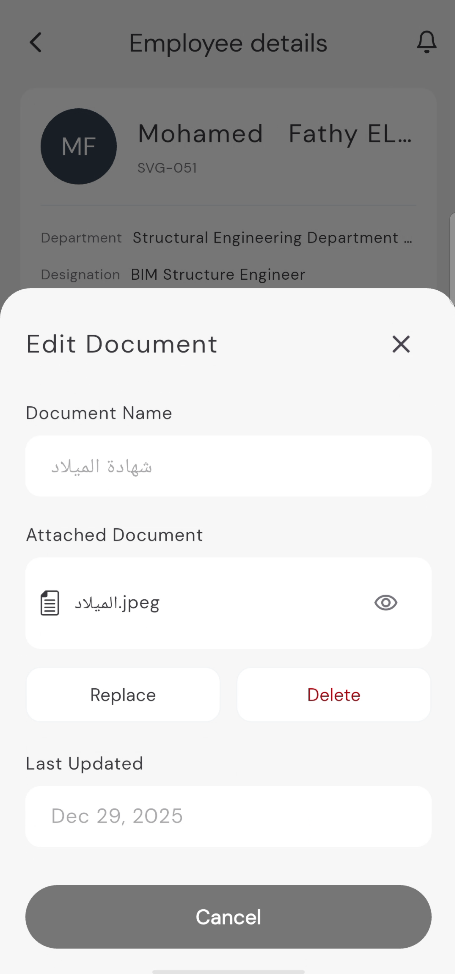
When editing a document, you can:
- View the Last Updated date.
- Replace the current file with a new one.
- Delete the document from the record.
9:41
●●●●○WiFi100% 🔋
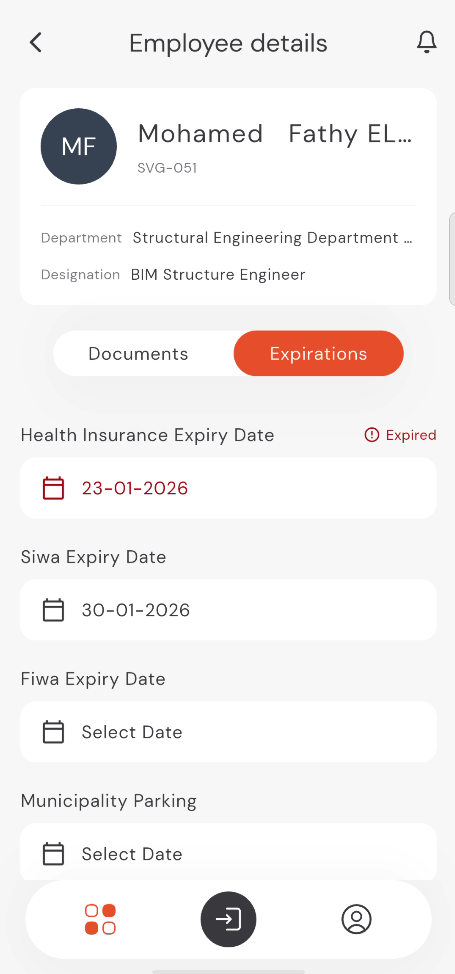
2. Expirations
The Expirations tab tracks critical dates for insurance, parking, and other recurring requirements.
- Real-time Status: If a document is out of date, an Expired badge will appear in red.
- Updating Dates: Tap on the date field to select a new expiration date from the calendar. After choosing a date, a confirmation popup will appear. You must tap Confirm to save the changes to the employee's record.
9:41
●●●●○WiFi100% 🔋