Meetings
Keep track of your appointments, team syncs, and virtual meetings.
Navigating the Calendar
- Tap on Meetings from the home screen.
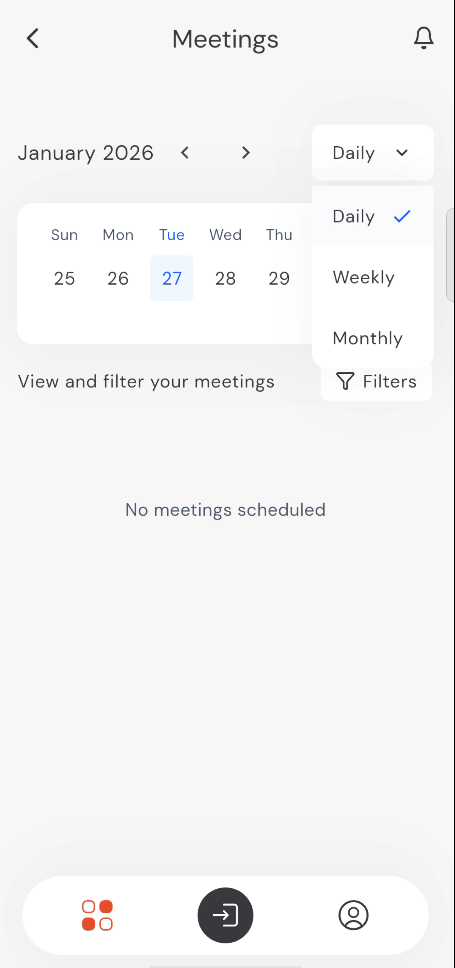
- By default, the calendar opens in the Daily view, showing your schedule for the current day.
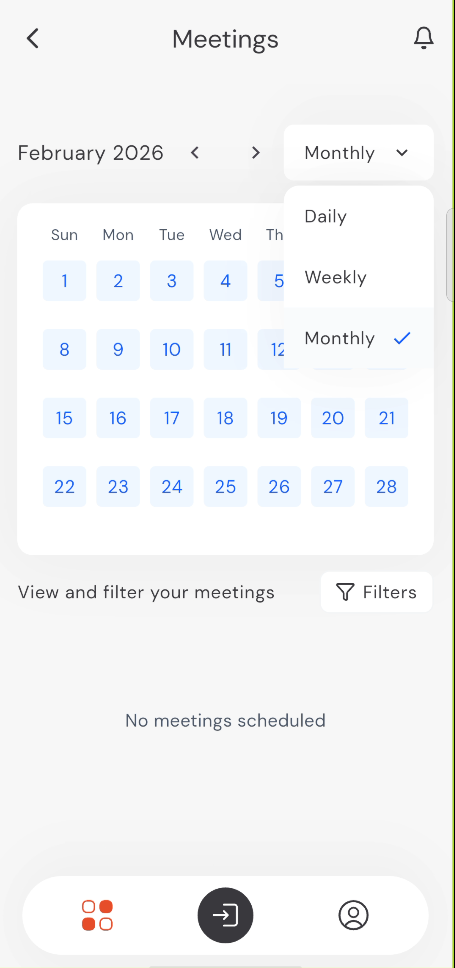
- Use the Left (<) and Right (>) arrows next to the month name to switch between different periods.
- Use the dropdown menu (top right of the calendar) to toggle between Daily, Weekly, and Monthly views.
9:41
●●●●○WiFi100% 🔋
Example of switching to Monthly view:
9:41
●●●●○WiFi100% 🔋
Meeting Details
- Select a date to see the list of meetings for that day.
- Each meeting card shows the title, time, and current status.
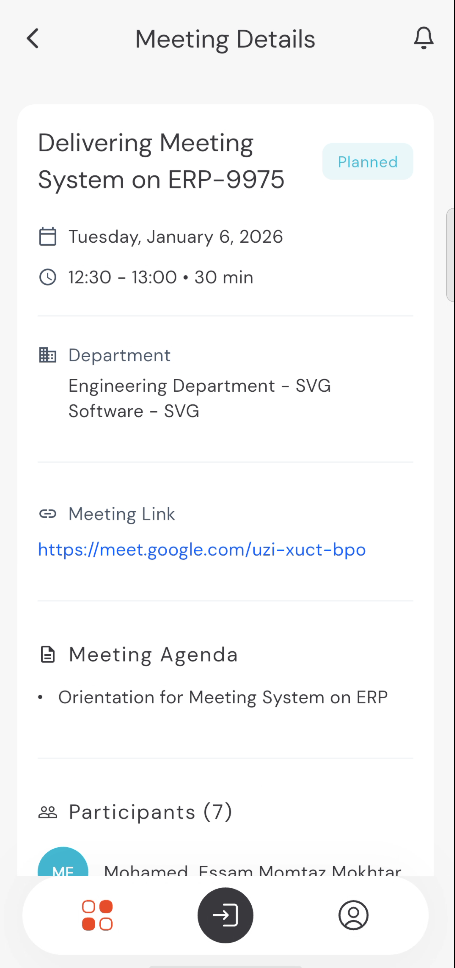
- Tap on a meeting to see:
- Participants: View the list of attendees.
- Meeting Link: Access virtual meeting rooms directly.
- Agenda: Review the discussion points.
- Department: View which department the meeting belongs to.
9:41
●●●●○WiFi100% 🔋
Filtering Meetings
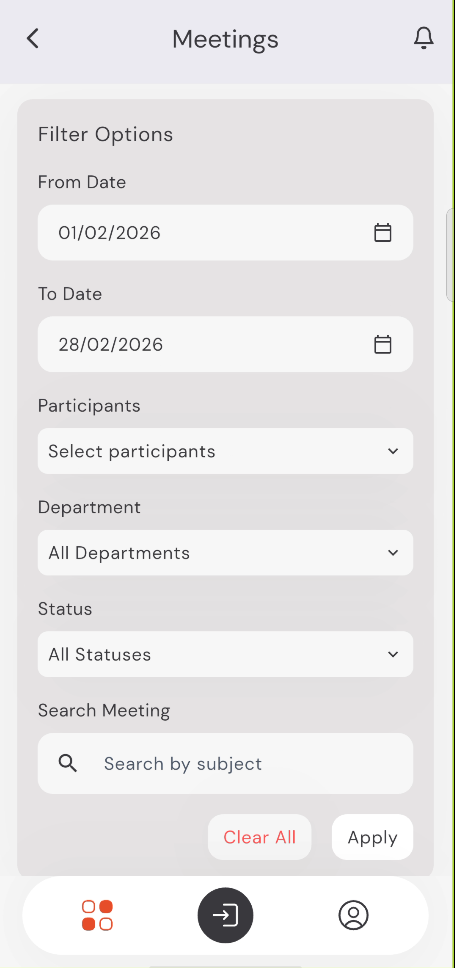
To find specific meetings across a large schedule:
Tap the Filters button.
Set a From Date and To Date range.
Filter by Participants, Department, or Status.
Use the Search bar to find meetings by subject.
Tap Apply to update your view.
9:41●●●●○WiFi100% 🔋