Task Allocations
The Allocations module helps you track tasks assigned to you and their current progress.
Overview
Tap on Allocations from the home screen.
The dashboard provides a summary of your tasks by status:
- Assigned
- In Progress
- In Review
- Completed
- Follow Up
9:41●●●●○WiFi100% 🔋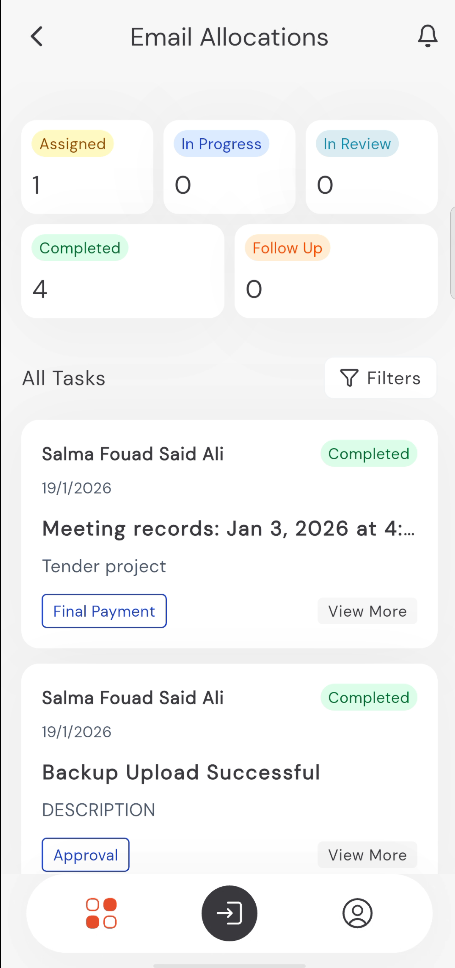
Managing Tasks
- Scroll through the All Tasks list to see your assignments.
- Each task card shows the task title, project name, deadline, and current status.
- Tap View More to see detailed information about a specific task.
- You can use the Filters button to find tasks by specific projects or status.
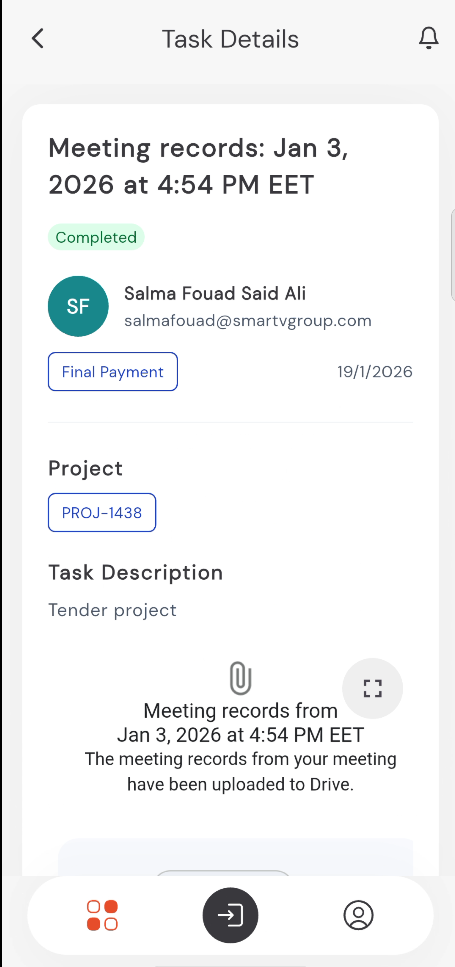
Task Details
When you tap on a task to view more details, you can see:
- Project Information: The specific project code (e.g., PROJ-1438) linked to the task.
- Assignee details: Who is responsible for the task.
- Task Description: A detailed explanation of what needs to be done.
- Attachments & Links: Any documents or external resources (like Drive links) related to the task.
- Status Label: A clear indicator if the task is "Completed", "In Progress", etc.
9:41
●●●●○WiFi100% 🔋